

AI productivity Training for data science teams
StreamAlive helps 9x the audience engagement in your Virtual Instructor-led Trainings (VILT).
Make your instructor-led AI productivity training more fun with polls, word clouds, spinner wheels and more
Works inside your existing PowerPoint presentation
Install the StreamAlive app for PowerPoint and see your slides come to life as people participate in your interactions
AI generates audience interactions for you
Let our AI scan your presentation and automatically come up with relevant questions based on the content. Or spend two hours coming up with your own questions, your choice!
Built to work with MS Teams and Zoom
Native apps for Teams and Zoom so you never have to leave your existing workflows
No QR Codes
Chat-powered interactions means your audience doesn’t need to scan QR codes or look at another screen to participate. They just type in the chat!

Quickly approved by your IT team
StreamAlive’s apps for Teams and Zoom means that they have been through rigorous quality assurance and client safety reviews. You’ll find everything an IT team needs to approve the app within the organization within your StreamAlive account.

You've been asked to conduct AI productivity training for data science teams and you want to make the session fun and interesting. Lets see how to make that happen.
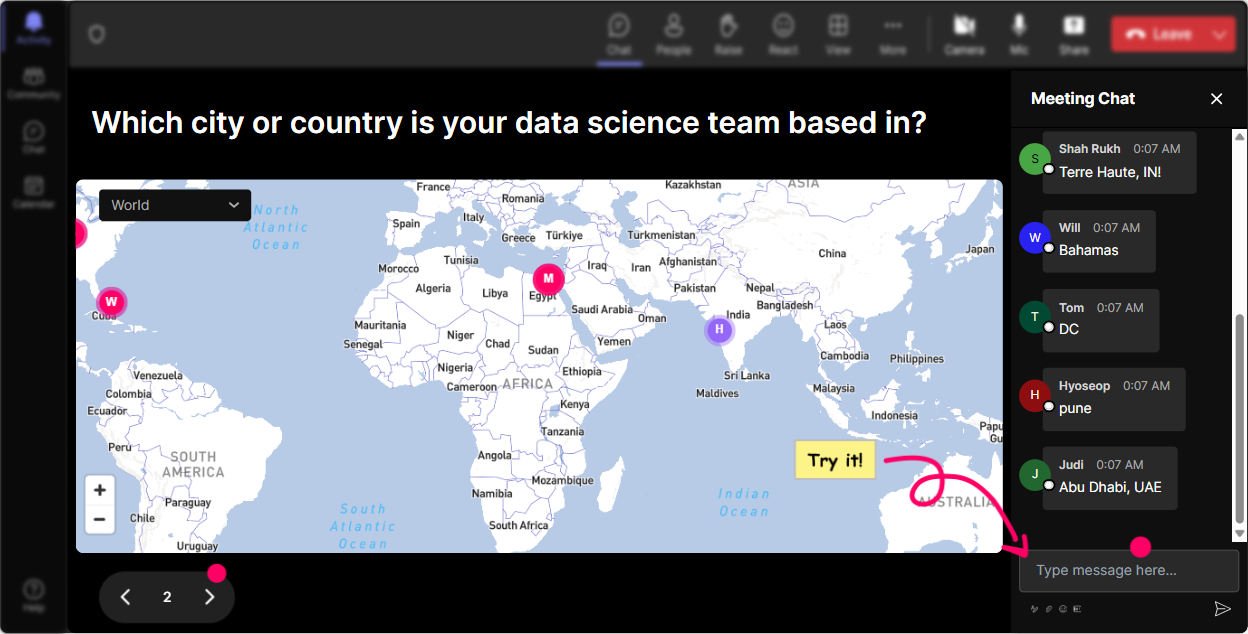
Put Your Audience on the Map
Kick off your session with a fun round using Magic Maps. Get everyone excited by asking them to share where theyre joining from or their dream travel destinations. This not only breaks the ice but also gets your participants on the map, literally!
Gauge the Room with a Rating Poll
Start by getting a sense of your audiences knowledge with a quick Rating Poll. Find out what everyones understanding of AI productivity is on a scale from 1 to 10. This will help you tailor your session accordingly.

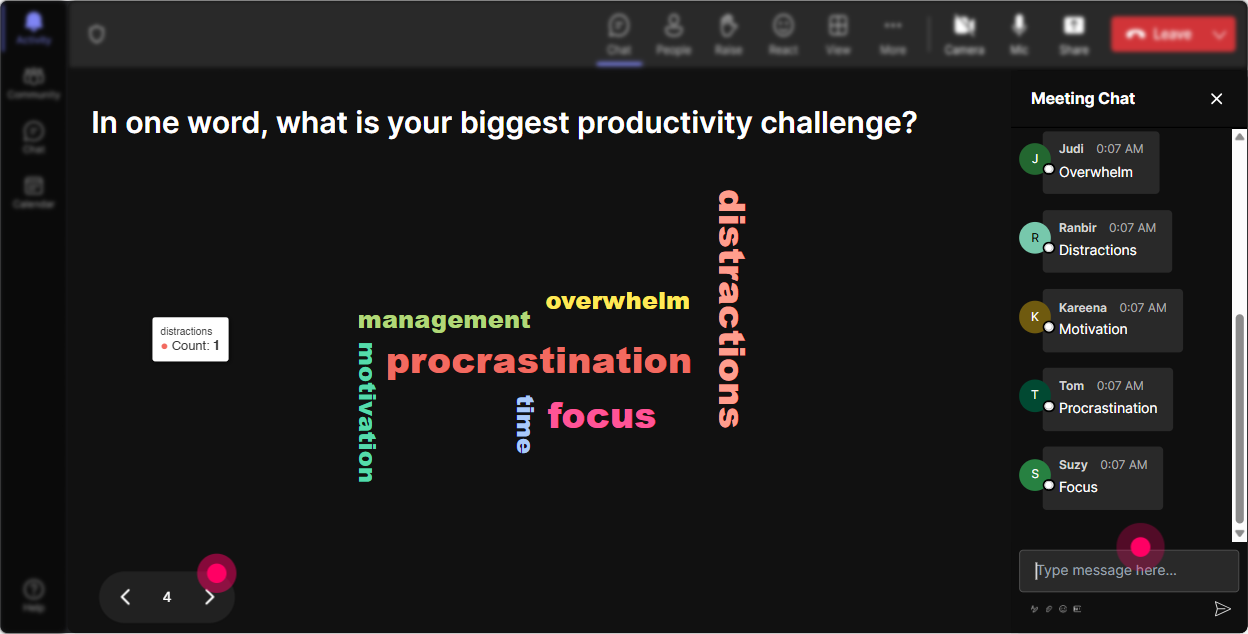
Capture the Pulse with a Word Cloud
Use Word Clouds to visualize how your audience feels about AI productivity. Are they excited, intimidated, or maybe just curious? Watching the cloud form in real-time is a great way to get people talking.
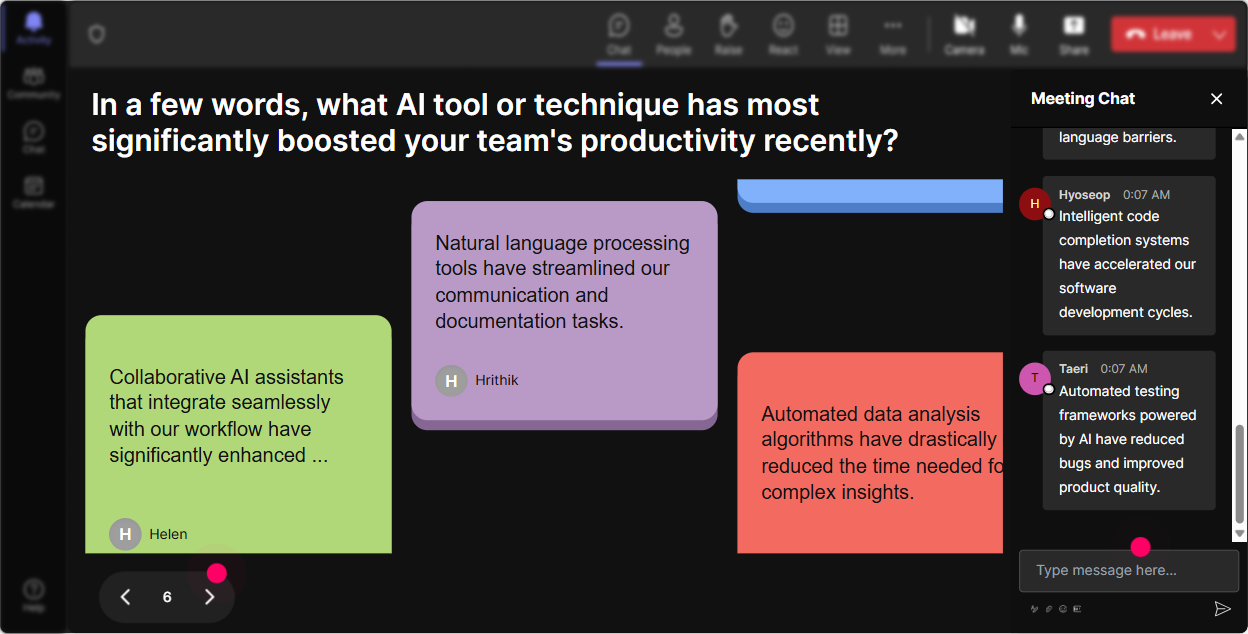
Make it Fun with Talking Tiles
Let your participants share how they think AI productivity impacts their roles. Using Talking Tiles, their messages become part of a lively visual display, turning a mundane discussion into an interactive experience.
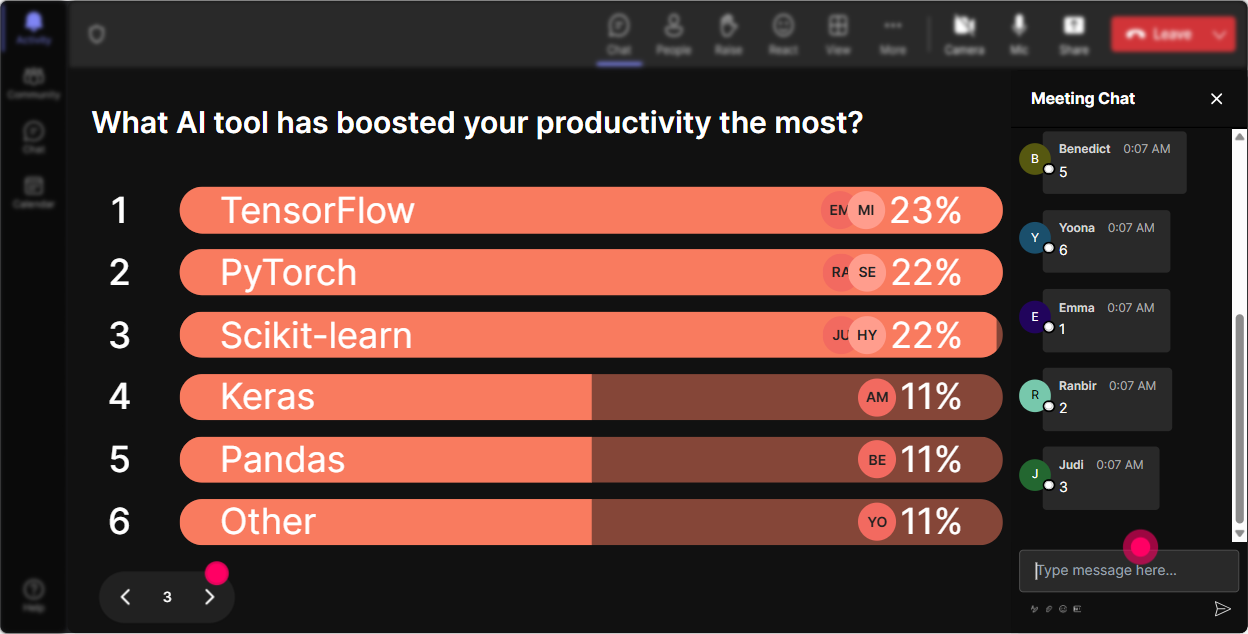
Discover Interests with a Poll
Run a quick Poll to find out which aspect of AI productivity your audience is most eager to learn about. This ensures you focus on what truly matters to your group.
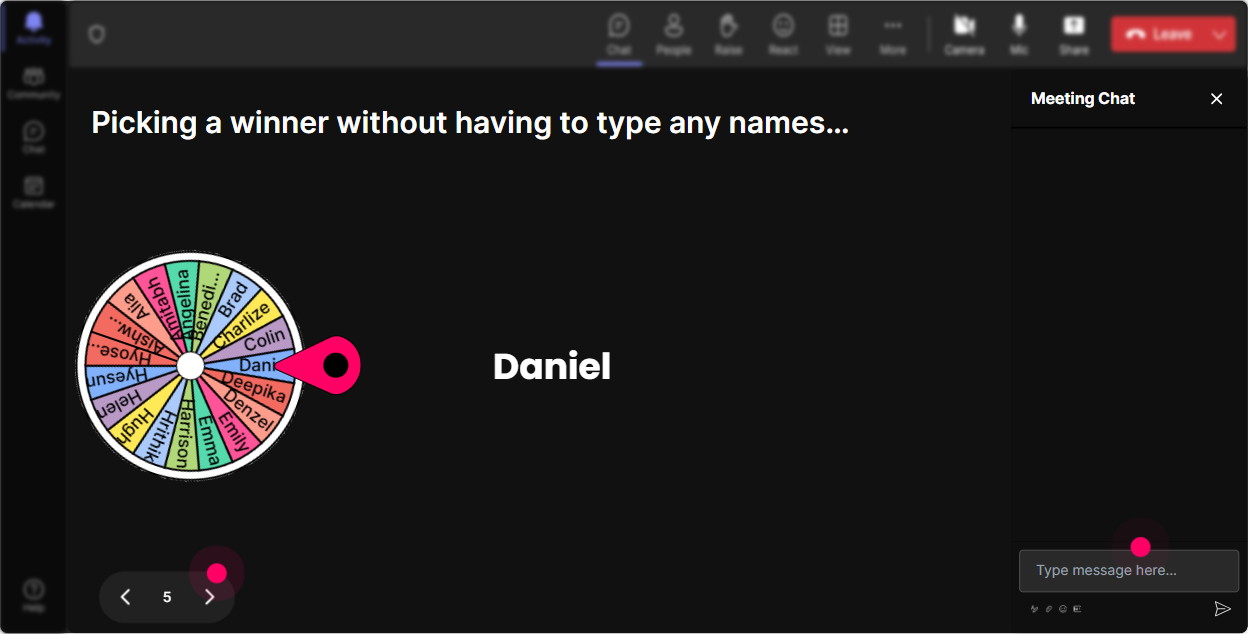
Engage with a Spinner Wheel
Looking for a volunteer to share insights? Use the Spinner Wheel to select someone at random, keeping things spontaneous and exciting. Its a fantastic way to get participants involved!
Test Knowledge with a Quiz
Challenge your data science team with a Quiz on AI productivity. Ask them a multiple-choice question, then reveal the correct answer to make learning both fun and informative.

Gauge the Room with a Rating Poll
Start by getting a sense of your audiences knowledge with a quick Rating Poll. Find out what everyones understanding of AI productivity is on a scale from 1 to 10. This will help you tailor your session accordingly.
Simplified Q&A with Quick Questions
StreamAlive seamlessly picks up questions from the chat, making your Q&A sessions smooth and organized. No more digging through messages-everything you need is at your fingertips.

Analyze Engagement with Analytics
After your session, dive into StreamAlive's Analytics to see which parts of your presentation kept the audience hooked. Identify your most engaged members and share valuable feedback with your team via Teams or Email.

Use StreamAlive in all your training sessions
StreamAlive isn’t just for
AI productivity
training,
it can also be used for any instructor-led training session
Explore similar traingin ideas: unlocking the potential of StreamAlive
See how StreamAlive transforms live training with engaging events and interactive sessions across industries.

Interactions in action
(it's free)

.svg.png)


