

AI tools Training for clinical trial teams
StreamAlive helps 9x the audience engagement in your Virtual Instructor-led Trainings (VILT).
Make your instructor-led AI tools training more fun with polls, word clouds, spinner wheels and more
Works inside your existing PowerPoint presentation
Install the StreamAlive app for PowerPoint and see your slides come to life as people participate in your interactions
AI generates audience interactions for you
Let our AI scan your presentation and automatically come up with relevant questions based on the content. Or spend two hours coming up with your own questions, your choice!
Built to work with MS Teams and Zoom
Native apps for Teams and Zoom so you never have to leave your existing workflows
No QR Codes
Chat-powered interactions means your audience doesn’t need to scan QR codes or look at another screen to participate. They just type in the chat!

Quickly approved by your IT team
StreamAlive’s apps for Teams and Zoom means that they have been through rigorous quality assurance and client safety reviews. You’ll find everything an IT team needs to approve the app within the organization within your StreamAlive account.

So, youve got the challenging yet exciting task of conducting AI tools training for clinical trial teams. You want them engaged, right? Let me show you how to make your session fun and interactive!
Interactive Maps Can Break the Ice
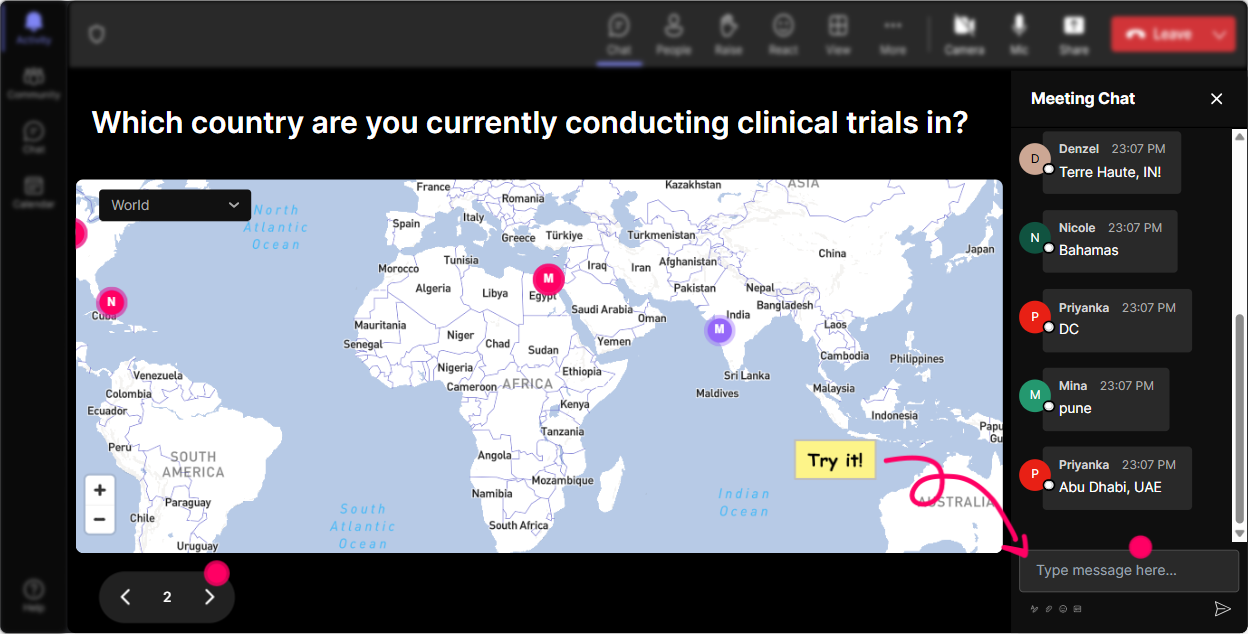
Start your session by asking participants to share their location through Magic Maps. Find out where everyone is logging in from, or where they've conducted clinical trials before. It's a great way to establish a connection between team members.
Gauge AI Knowledge with Rating Polls
Get a feel for your team's familiarity with AI tools. Use Rating Polls to have participants rate their confidence level or experience with AI. This can guide you on where to focus your training more closely.

Capture Feelings with Word Clouds
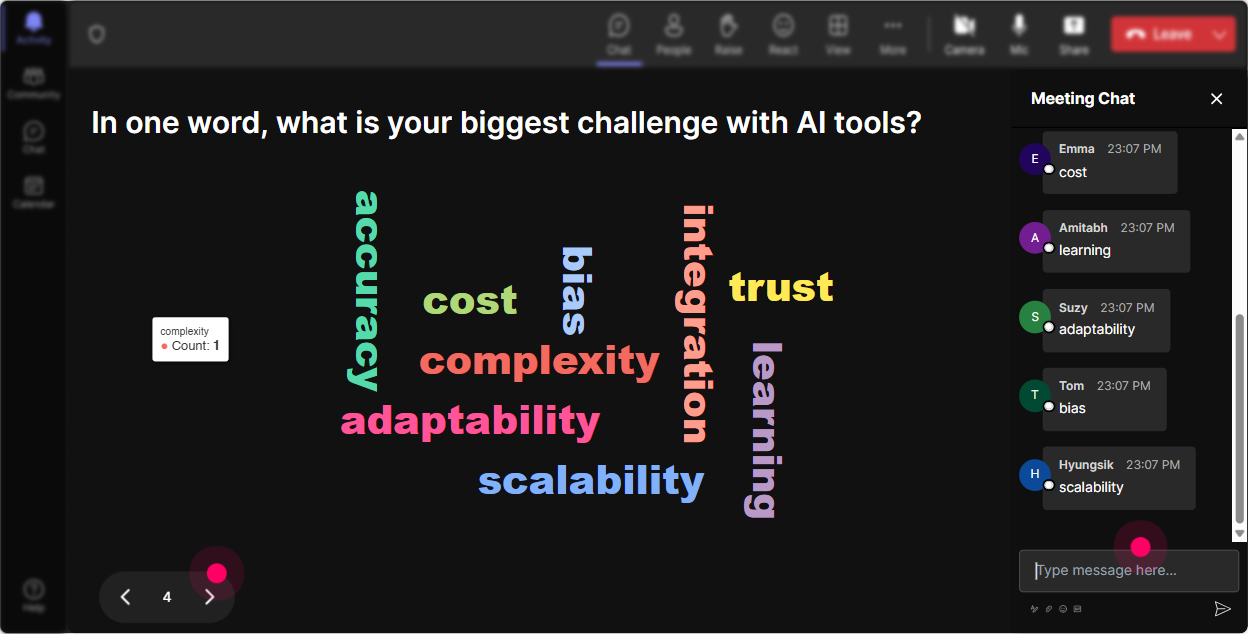
Run a Word Cloud at the start. Ask 'How do you feel about incorporating AI into clinical trials?' Watch as words like 'excited,' 'nervous,' and 'curious' pop up, giving you insight into their mindset.
Capture Impact with Talking Tiles
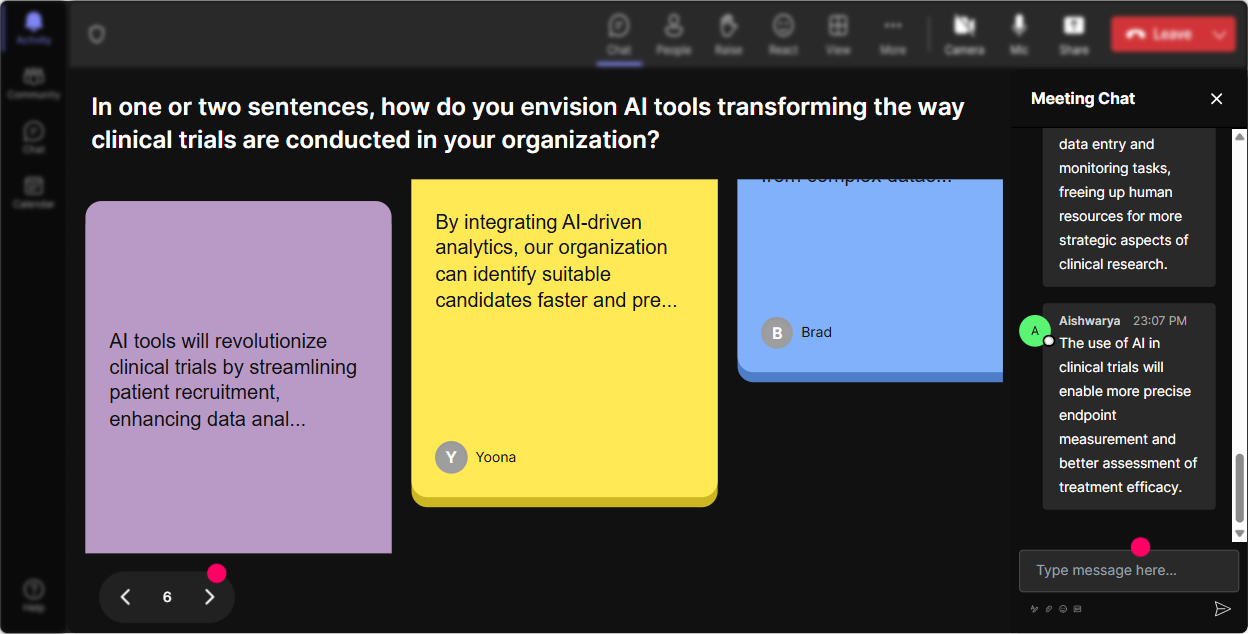
Let participants share the impact of AI tools on their day-to-day roles. With Talking Tiles, everyone's input appears as sliding visuals, turning their responses into an engaging visual display.
Explore Interests with Polls
Find out what gets them excited about AI tools. Use a Power Poll to see if they're more interested in data analysis, patient engagement, or automating processes. Understand their priorities.

Choose Speakers with a Spin
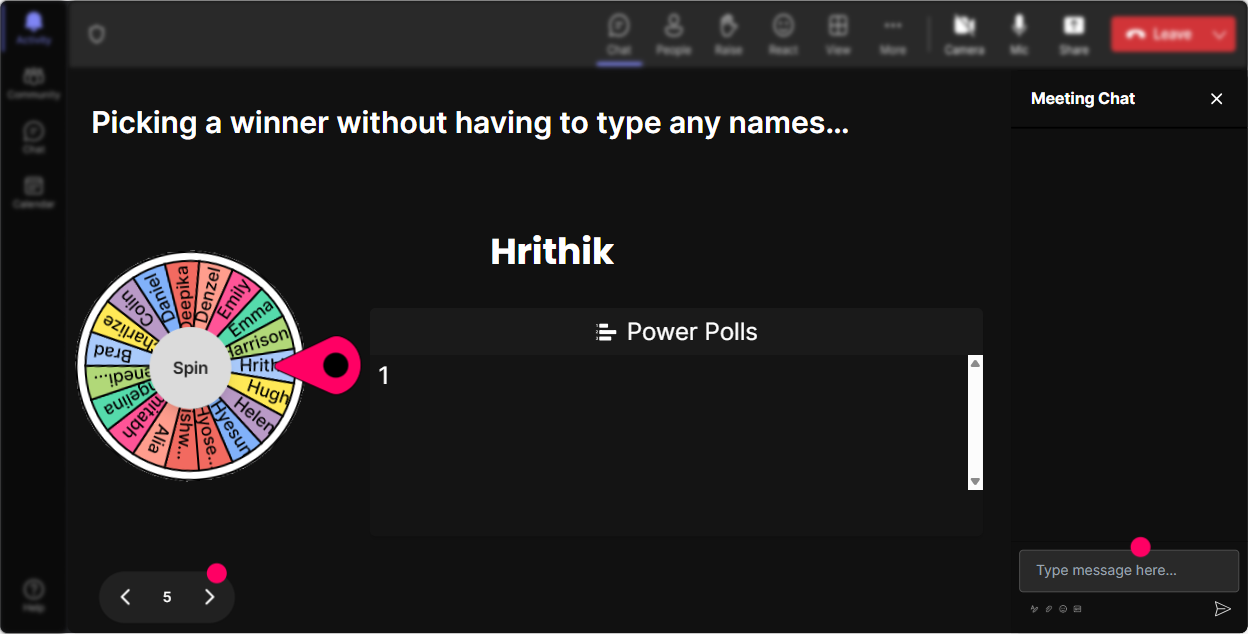
Need someone to volunteer insights or a case study? Use the Spinner Wheel to randomly pick a participant, adding an element of surprise and equal opportunity for input.
Challenge Your Team with a Quiz
Pick their brains with a fun quiz on AI tool functionality. See who knows what, and explain trickier topics after revealing the right answers. This reinforces learning and sparks further discussion.

Gauge AI Knowledge with Rating Polls
Get a feel for your team's familiarity with AI tools. Use Rating Polls to have participants rate their confidence level or experience with AI. This can guide you on where to focus your training more closely.
Simplify Questions with Quick Q&A
StreamAlives Q&A feature gathers questions directly from your chat. It ensures you dont miss any burning questions, allowing you to address concerns in real-time seamlessly.

Review Engagement with Analytics
After your session, use StreamAlive's analytics to see what parts kept the team involved. Identify top engaging segments and participants, and share reports easily through Teams or Email for further planning.

Use StreamAlive in all your training sessions
StreamAlive isn’t just for
AI tools
training,
it can also be used for any instructor-led training session
Explore similar traingin ideas: unlocking the potential of StreamAlive
See how StreamAlive transforms live training with engaging events and interactive sessions across industries.

Interactions in action
(it's free)

.svg.png)


