

Applied AI Training for rehabilitation teams
StreamAlive helps 9x the audience engagement in your Virtual Instructor-led Trainings (VILT).
Make your instructor-led Applied AI training more fun with polls, word clouds, spinner wheels and more
Works inside your existing PowerPoint presentation
Install the StreamAlive app for PowerPoint and see your slides come to life as people participate in your interactions
AI generates audience interactions for you
Let our AI scan your presentation and automatically come up with relevant questions based on the content. Or spend two hours coming up with your own questions, your choice!
Built to work with MS Teams and Zoom
Native apps for Teams and Zoom so you never have to leave your existing workflows
No QR Codes
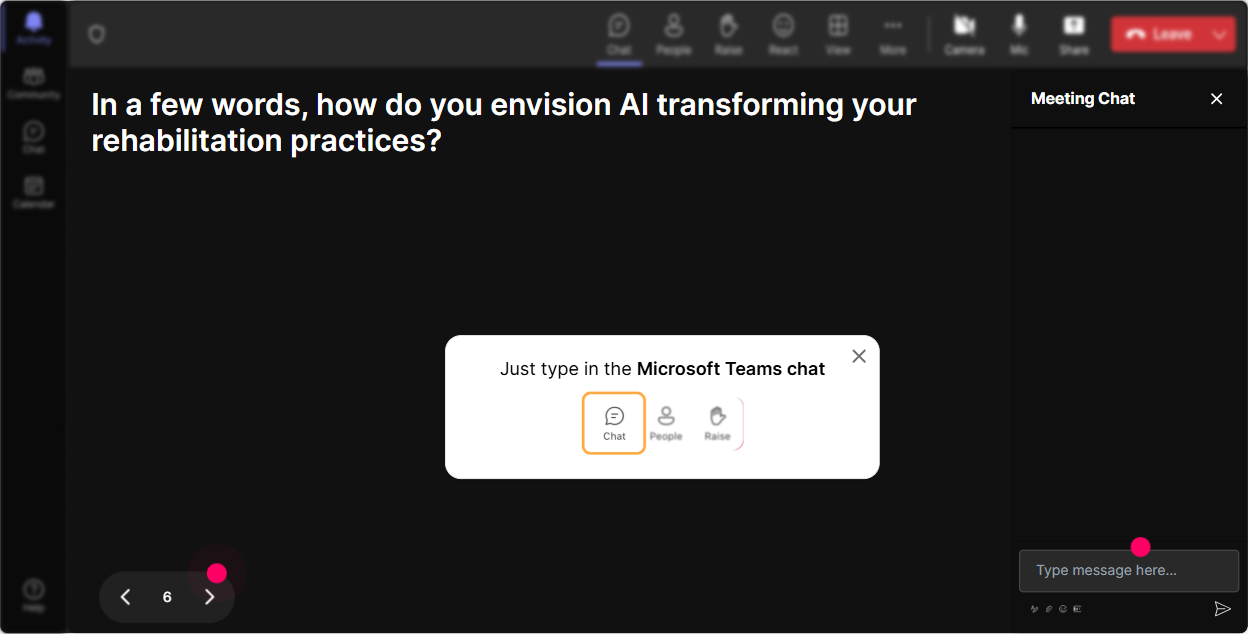
Chat-powered interactions means your audience doesn’t need to scan QR codes or look at another screen to participate. They just type in the chat!

Quickly approved by your IT team
StreamAlive’s apps for Teams and Zoom means that they have been through rigorous quality assurance and client safety reviews. You’ll find everything an IT team needs to approve the app within the organization within your StreamAlive account.

You've been asked to conduct Applied AI training for rehabilitation teams and you want to make the session fun and interesting. Lets see how to make that happen.
Putting Rehab Teams on the Map
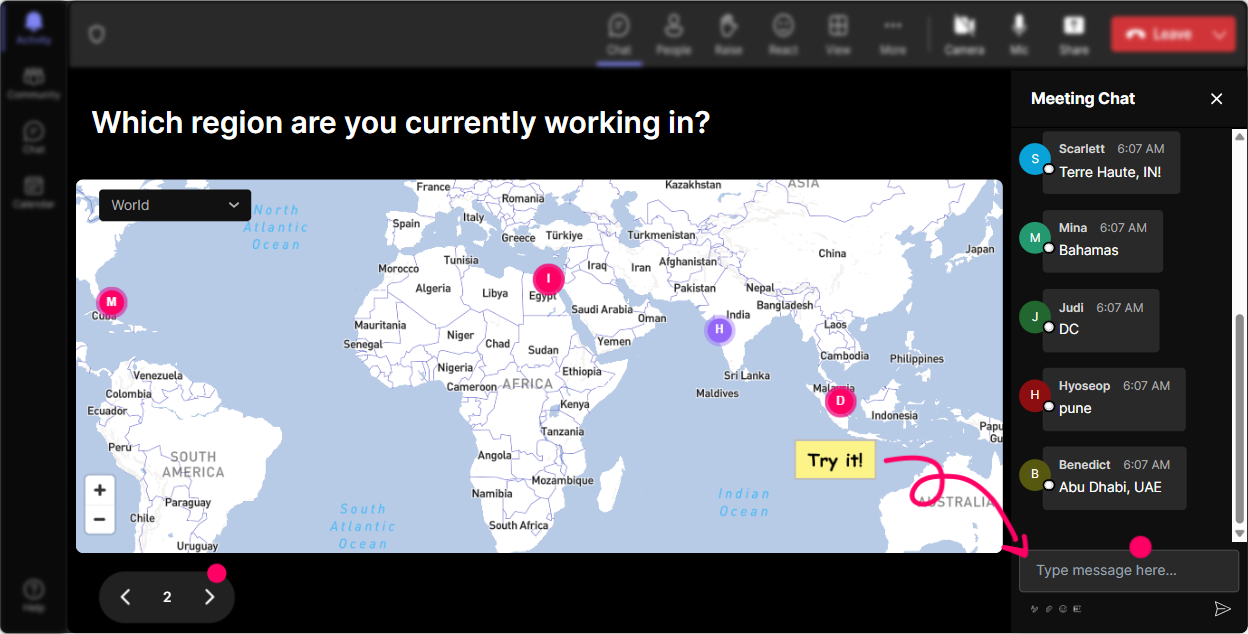
Break the ice and kick things off by asking your audience, Wheres everyone dialing in from? Use Magic Maps to create a visual breakout of where folks are joining from its a fun way to get started and see the global spread right on screen!
Gauge the AI Know-How
Find out what everyones current knowledge of Applied AI is. Use Rating Polls to ask, How comfortable are you with AI tools? This helps you tune your session based on whether folks are AI novices or seasoned tech savants.

Let Words Paint a Picture
How do people feel about Applied AI training? Excited? Intimidated? Use Wonder Words to have attendees drop a couple words on their initial emotions towards AI. Its a quick pulse check to adapt your presentation style.

Talking Transformations
Ask people what impact Applied AI has on their job role. With Talking Tiles, you can visualize each response dynamically, making the conversation come alive right there on your screen!
Zero in on Interests
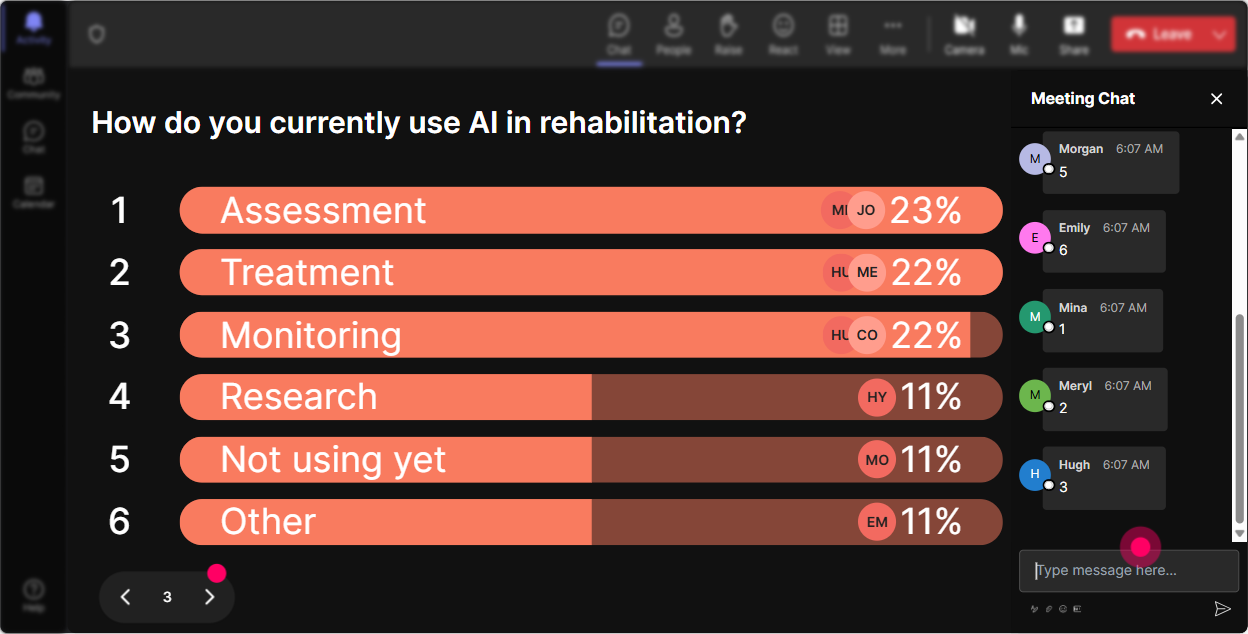
Find out what aspect of Applied AI people are most curious about. Run a Power Poll asking them, "What's the burning AI topic you want mastered by the end?" Folks type their choice, and you get to focus on what truly matters to them.
Spin the Story
Need a volunteer to share an opinion or insight? Use the Spinner Wheel to select someone randomly. Its a fun way to keep participants on their toes, plus it fosters spontaneity in your session.

Knowledge Check!
Sprinkle in a pop quiz with the Quiz feature and test their understanding of Applied AI. Toss them a question like, Which AI tool is best for data analysis? and reveal the right answer while explaining why.

Gauge the AI Know-How
Find out what everyones current knowledge of Applied AI is. Use Rating Polls to ask, How comfortable are you with AI tools? This helps you tune your session based on whether folks are AI novices or seasoned tech savants.
Ask Away, Seamlessly!
StreamAlive detects and collects questions directly from the chat. Easily handle inquiries without fiddling with separate Q&A sections, making interactions smoother and more organic.

Wrap Up with Insights
After your session, dig into Analytics to see which parts hooked your audience, who stayed the most engaged, and how interactions unfolded. Share these insights effortlessly with your team; its a goldmine for refining future sessions.

Use StreamAlive in all your training sessions
StreamAlive isn’t just for
Applied AI
training,
it can also be used for any instructor-led training session
Explore similar traingin ideas: unlocking the potential of StreamAlive
See how StreamAlive transforms live training with engaging events and interactive sessions across industries.

Interactions in action
(it's free)

.svg.png)


